
CS2 style crosshairs for DoD1.3 by bulletlottery 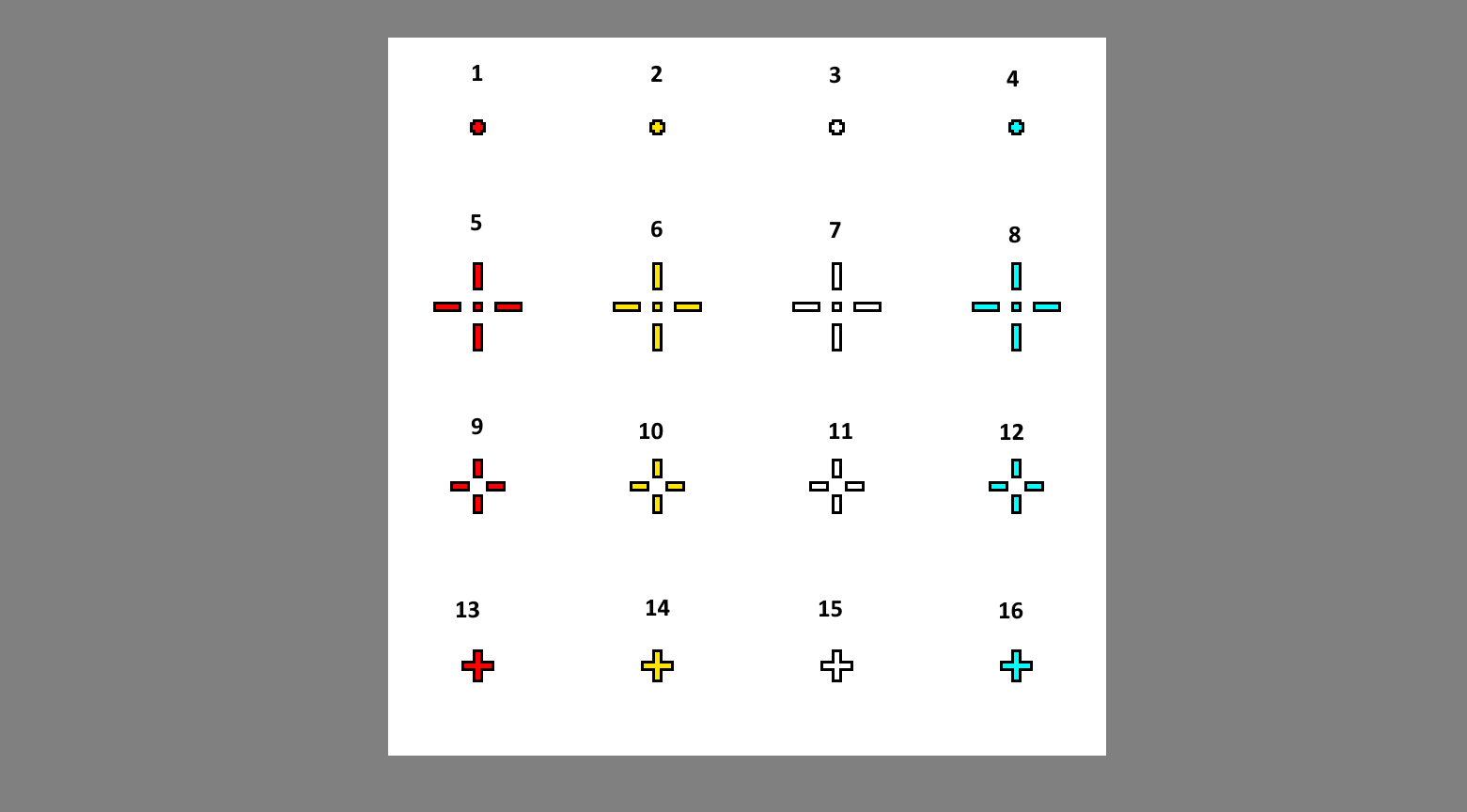
From the readme...
CS2 style crosshairs for DoD1.3 by bulletlottery 25th Sept 2026
Release source... https://discord.com/channels/1338018430980460604/1338018430980460606/1552823339528228896
These crosshairs have black outlines which is common in games such as cs2 etc.
The crosshairs also don't need gl_spriteblend 0 enabled they natively look bright and clear!
This 16 crosshair set You can select your favorite crosshair by looking at the image in the download "cs2_style_x_hairs.png" and noting the number above it.
Then... put this in your console or userconfig.cfg file.... cl_xhair_style "1" ...if "1" was your choice in the image.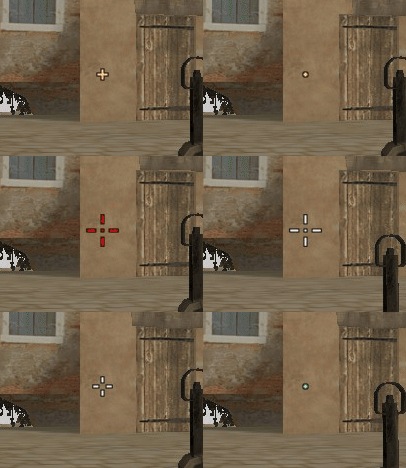
**** ALL 16 Custom X Hairs - Recommended for most players ****
A Special Cycle script.
You can use a special script (OK for VAC) and cycle through the standard dod crosshair and all 16 custom ones in the set by pressing a bind key of your choice.
In the download there is a userconfig.cfg file.
If you already have a userconfig.cfg...
just copy and paste the script into your userconfig.cfg file. Select your favorite and
If you don't have a userconfig.cfg or don't know what it is...
just google what that is. It's one of the config file types that store settings for dod.
config.cfg, autoexec.cfg, userconfig.cfg... that the group of files the userconfig.cfg is handy, get to know it.
That file type opens with notepad for editing if you don't like the defaults.
Note that if you have a favorite crosshair you can set this in the userconfig.cfg.
Look for...
//Favorite xhair, change the number to YOUR Favorite one
cl_xhair_style "1"
As you can see I have set that to "1" the first crosshair, a RED dot, look at the image in the download, pick yours.
Also the default key for the script is the "P" key. Change that to suit you.
Operation after install is a matter of pressing "p" and it will cycle through, the default dod cross is "cl_xhair_style 0" and the 16 in the image come after that.
This set should work on Windows, Linux or MacOS.
*****************
Installation
1. Chose a selection in the download and copy the "dod_addon" folder in the download to the "Half-Life" folder.
Finished.
Don't forget to select your favorite Xhair via editing the userconfig.cfg
Can't find your "Half-Life" folder? See the troubleshooting section below.
*****************
*****************
Troublesooting amd FAQ
1. Can't find your "Half-Life" folder?
Go to <Your drive>:<Your folder>steamappscommonHalf-Life
e.g:
D:SteamLibrarysteamappscommonHalf-Life
C:Program Files (x86)SteamsteamappscommonHalf-Life
Just search your system
2. Why use the "dod_addon" folder?
You will note we are not putting files directly into the "dod" folder like most older downloads instruct.
Read on please it could be important considering the Half-Life and dod files are updating late 2023.
Or see this page...
https://sturmbot.org/index.php/dod-turtorials/day-of-defeat-customisation-guides/113-how-to-add-custom-files-to-steam-day-of-defeat-1-3
*****************
**** The "dod_addon" folder explained ****
This folder set uses a special "dod_addon" folder that sits in the "Half-Life" folder.
You should always use the "dod_addon" folder for Steam dod 1.3 custom content.
(unless it is a Bot program or a admin mod that needs to be under the "dod" folder."
Files placed in the "dod_addon" folder will override the files in the "dod" folder, keeping the default files as they are.
This is normal in the SteamPipe system past 2013.
Should you need to go back to the default files you can do that go to Options - Content tab you will see a tickbox for allowing or disallowing custom content.
Also... if you find this download has done something wrong, (like overwritten your other custom files e.g.: userconfig in doduserconfig.cfg) then... delete the userconfig.cfg in Half-Lifedod_addon.
The custom file that was overwriting files in "dod" will no longer affect the game and it is a great way of knowing where your custom files are... to change or uninstall.
INsane Sturmbot.org
 CS2 style crosshairs for DoD1.3 by bulletlottery